


Domus.Cad 26 – Rendering and Clouds
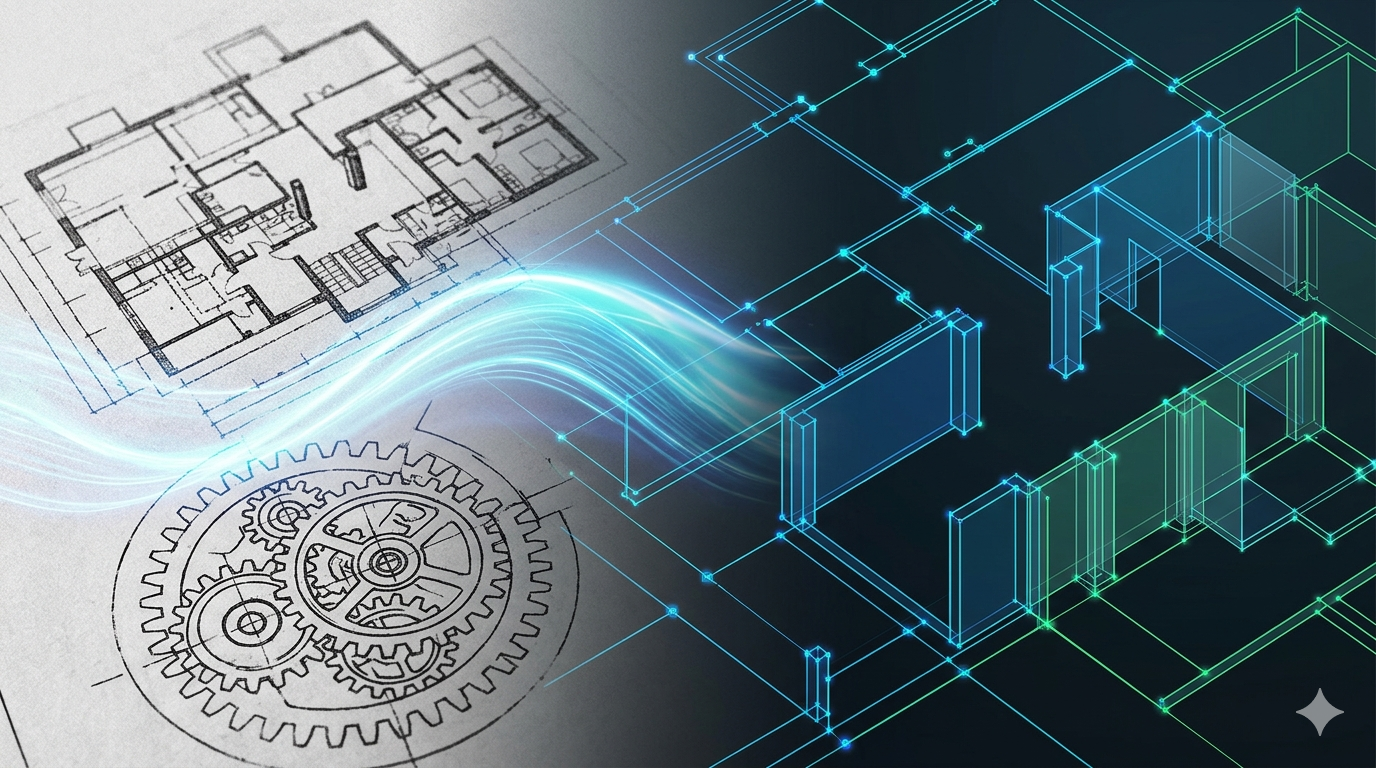
DigiCad 3D eliminates perspective warping, eliminates optical warping, calibrates old maps, imports and exports in a variety of formats, converts PDFs to drawings, connects with Google Maps, and treats images in a variety of ways. With the release of the 26 FC version, other important features are added to the list.
Vectorization drawings
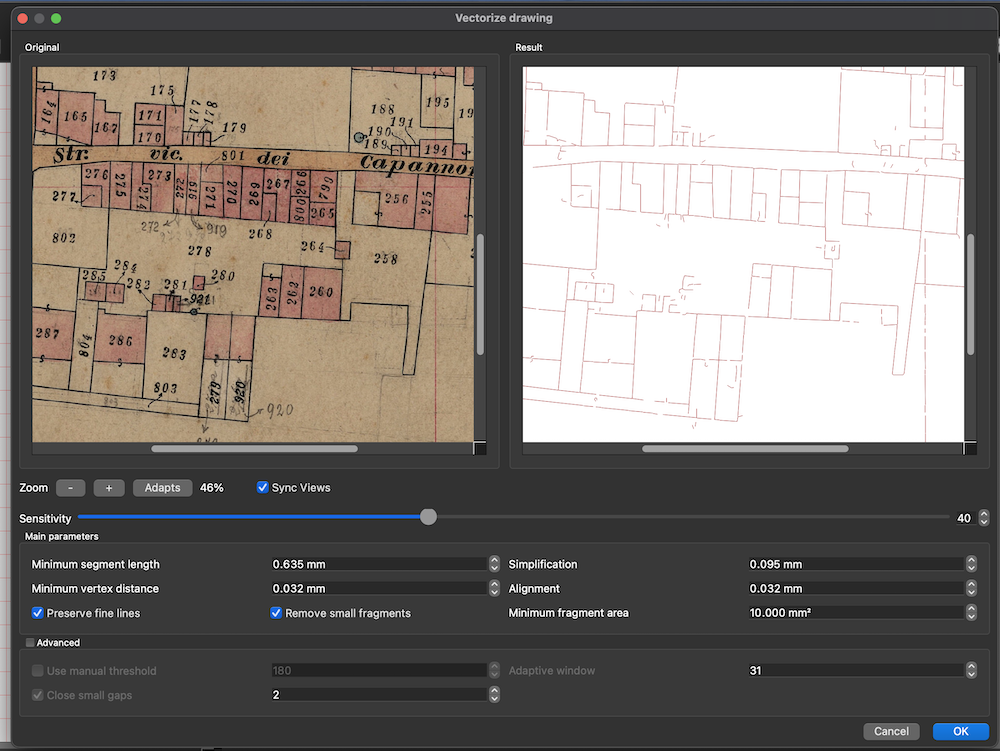
This is the most interesting feature of the new version, DigiCad 3D already had a Vectorize function, which however was indicated for images with areas full of color, such as logos, but the results with technical drawings were not optimal.
The drawing vectorization function is optimized for working on images composed of lines, polygons, etc.
It has procedures that take into account the thickness of the lines and is able to vectorize both thick and thin lines.
It manages to discard background noise from old maps, such as cadastral maps of the plant, where the background is yellowish and uneven.
A series of parameters allow you to preview their effect, until you obtain the best result.
By selecting an image and choosing Vectorize Drawing, from the Transform->Transform Image->Vectorize Drawing menu, or by clicking on its icon in the top bar, the following dialog box opens, where on the left is the original image, with a dark, dirty background, and on the right the vector drawing.
Below is the simplest case of an architectural drawing.
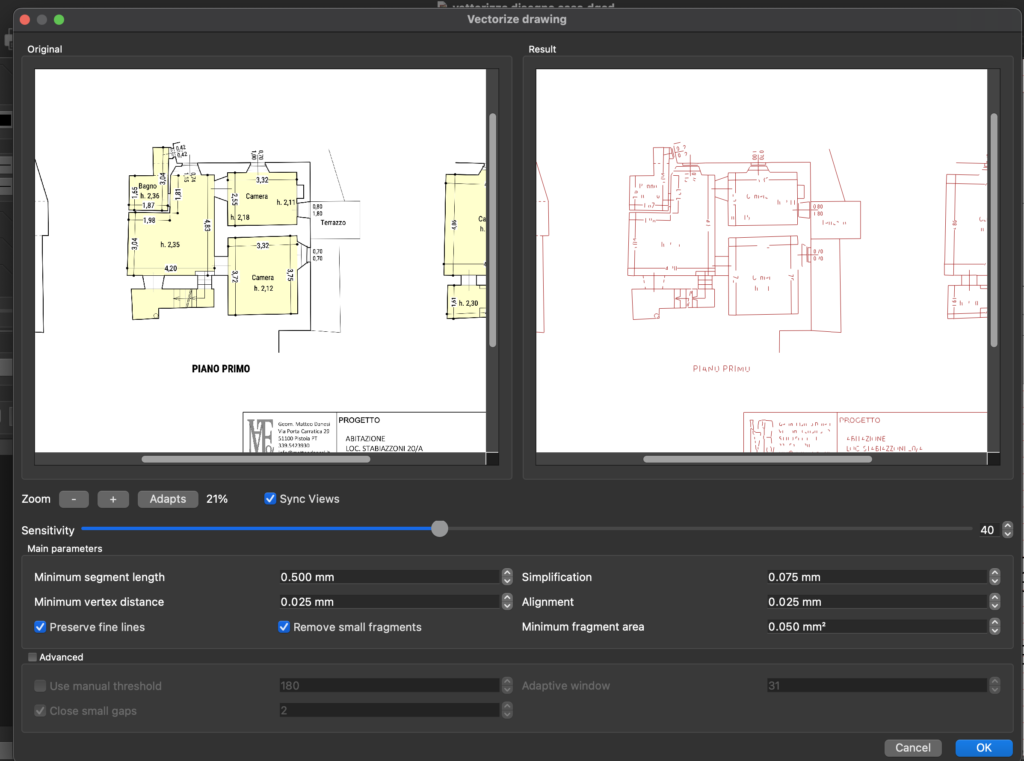
To achieve these results, the most advanced software techniques were implemented using the OVC libraries, Zhang-Swen algorithms, simplification algorithms, cleaning algorithms, and more.
Round polygons
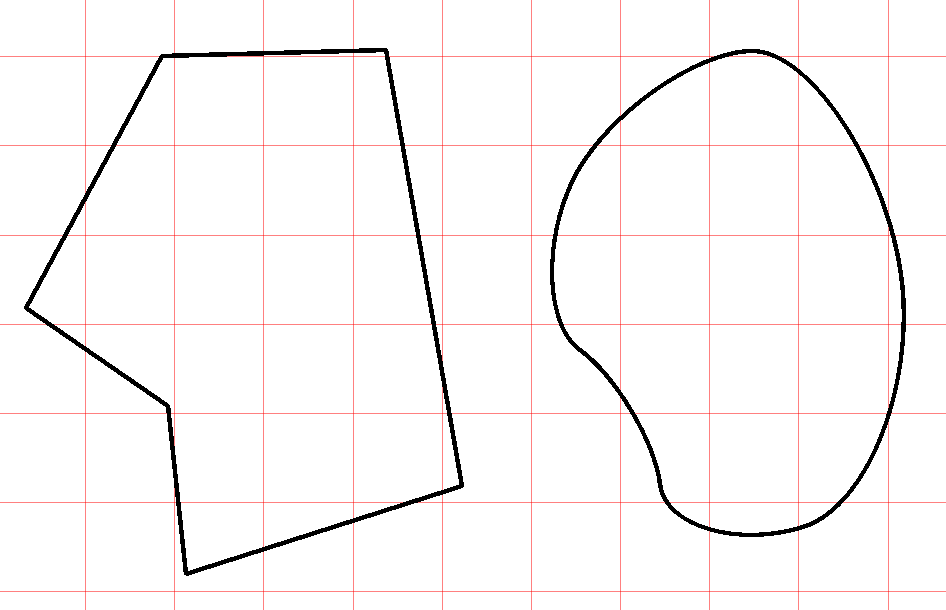
Using the command Drawing->Polygon Type > Smouthed you can set the Round mode for inserting new polygons or, if you are polygon-selected, round them
In pratica la procedura trasforma i poligoni in curve di Bezier.
Expand – Reduce
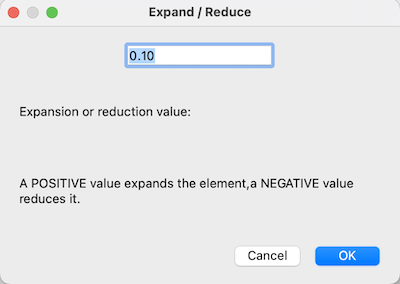
This new function expands or reduces the selected elements in parallel. It is applicable to lines, polygons, circles, arcs, rectangles and images. Each element is expanded or reduced with reference to its center and does not change its position in the worksheet.
Join and cut
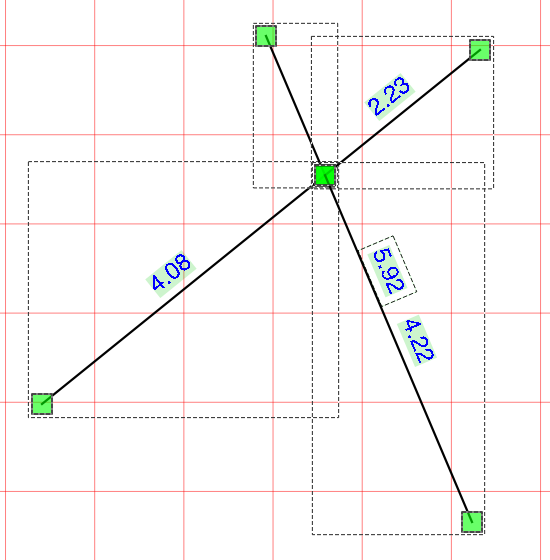
This command joins two selected segments and splits them at the meeting point. The user can then remove the parts that are not needed.
The function can be used by clicking on the relevant icon in the palette at the top
Join and eliminate
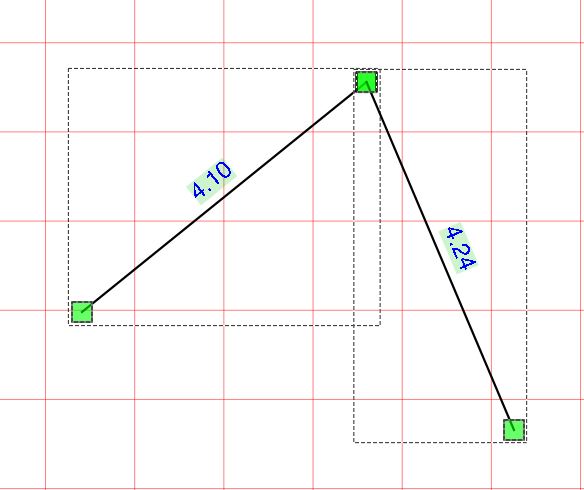
This command joins two selected segments, splits them at the meeting point and eliminates the shorter parts
The function can be used by clicking on the reactive icon in the palette at the top
Choosing colors with the keys
You can quickly change the color settings of lines and areas of geometric figures by pressing some keys on the keyboard.
The chosen color is applied to the lines or areas invaded at the left panel setting. If the panel is on lines, the color of the lines is changed; otherwise, the color of the areas is changed.
Shortcuts are
- R – Red
- B – Blue
- V – Green
- M – Magenta
- Y – Yellow
- C – Cyan
- N -Bleck
Choosing thickness with the keys
It is possible to quickly change the setting of the geometric figure thicknesses by pressing some keyboard keys from 0 to 9.
Transform to polygon
The Transform to Polygon command also transforms rounded tolgon. This is useful when you want to use rounded pokigini and crop images.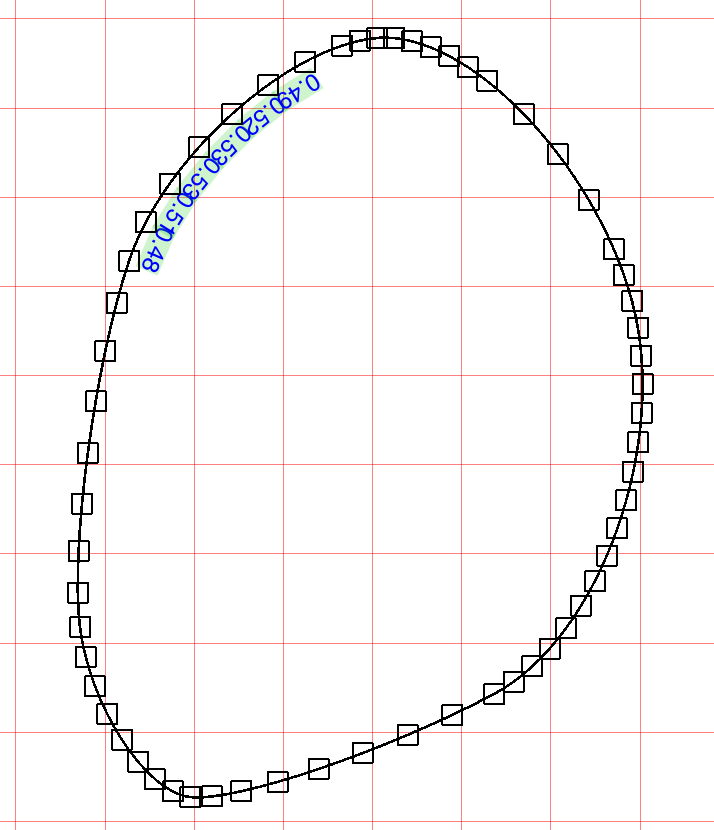
Other improvements
- Improved DWG.DXF import in the presence of arcs
- The open and closed polygon command now modifies the selected polygons
- Closing the window asks you to save
DigiCad 3D in brief
- DigiCad 3D is mainly used for photogrammetry and cartography. The program operates on surfaces of different types, including architectural, cartographic and pictorial, within a complete and flexible CAD environment.
- Among its main functions, we highlight exclusive and innovative tools that allow you to work on specific parts of the images, control transparencies, operate on smooth and irregular curved surfaces and eliminate optical deformation of the lenses.
- DigiCad 3D is capable of carrying out a wide range of tasks, such as eliminating the perspective deformation of images, creating orthophotos, correcting and georeferencing maps, superimposing and joining drawings and maps at different scales, and much more.
- Specific features include the ability to eliminate perspective deformation based on four or more control points, transform only part of the image, work with transparent or opaque images, mosaic images, straightening of curved surfaces and elimination of optical deformation.
- The software also supports inserting exactly scaled images from Google Maps, managing point clouds, digitizing drawings and photographs, creating textures from photos and processing images, among other features.
- Finally, DigiCad 3D offers several options for importing and exporting data in various formats, allowing interoperability with other programs and applications.
Other information
DigiCad 3D 24 – New functionalities
Digicad 3D 23; The new version
digicad-3d –innovation in photogrammetry and-cartography
Related posts


